1. Key switch
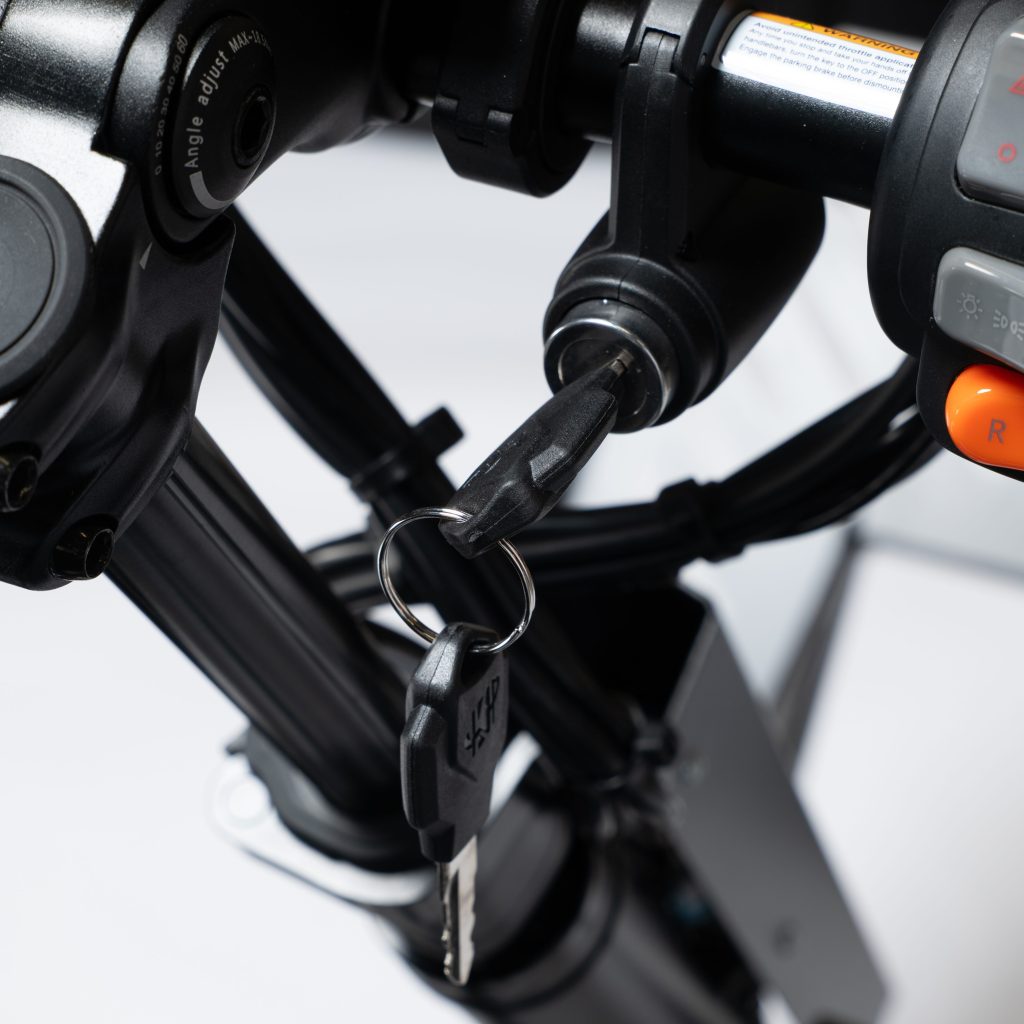
The Zoom is powered on and off with the key switch located on the right side of the handlebar. The Display will turn on when the switch is in the ON position. When started, the Zoom will power on in N (Neutral) mode, and the motors will not respond to the throttle.
2. Display
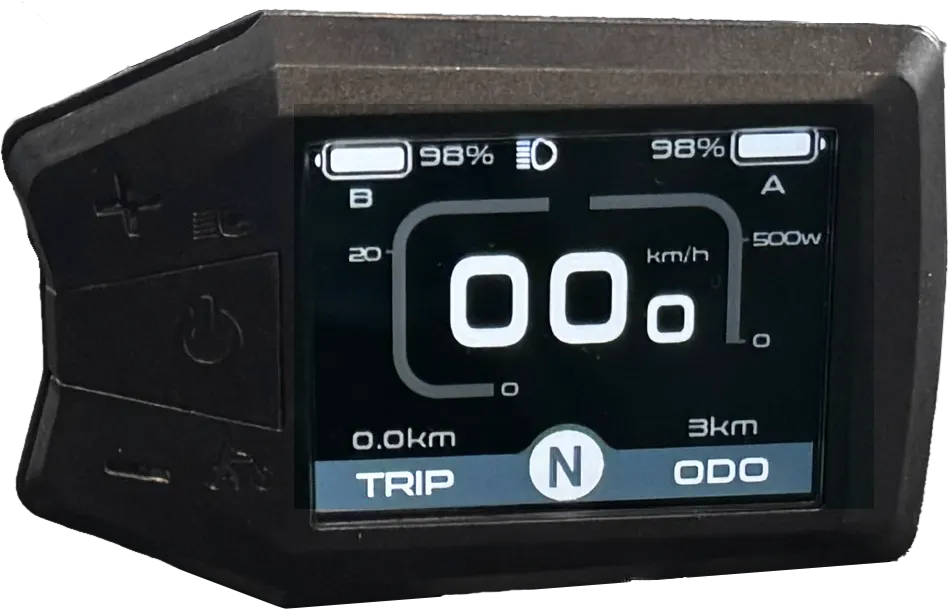
The Zoom’s display shows vital information to the driver and also has a USB-C charging port on the right side of the display. This port can be used to charge your phone or other electronic device. Remove the rubber plug before charging.
2.1 Display information

2.2 Display settings
The display can show measurements in either metric or imperial units. In order to change the displayed units, you must first access the Settings menu by pressing the “+” and “-” buttons on the left side of the display simultaneously.
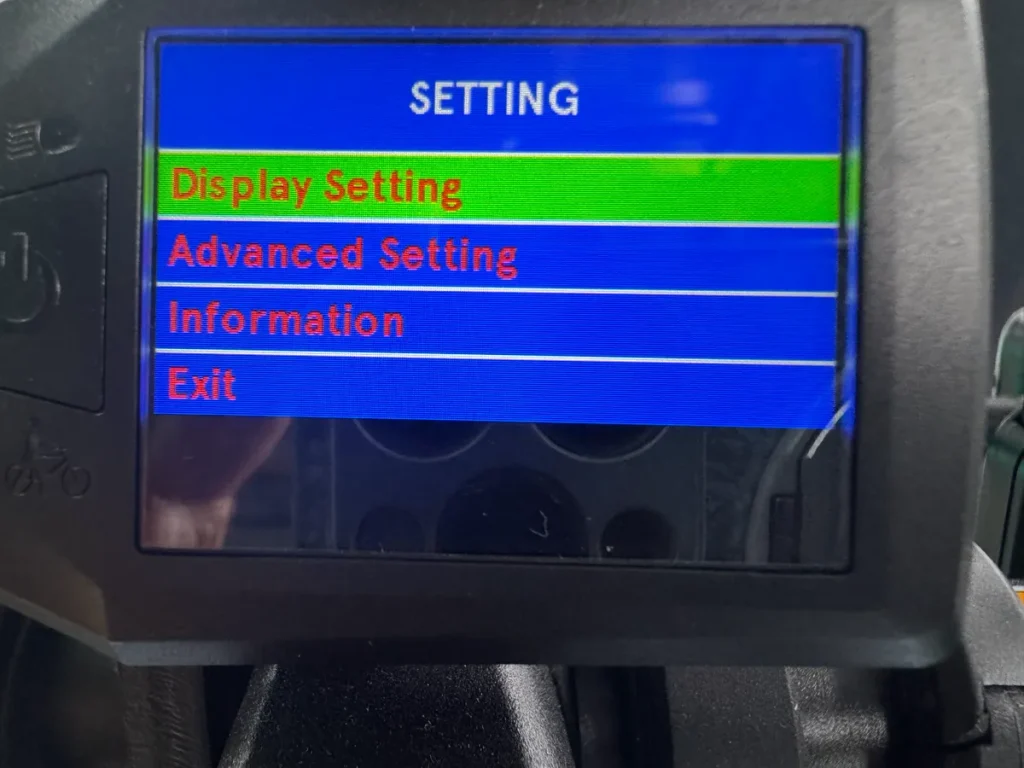
When the Settings menu is displayed, you can choose between the different options by navigating with the “+” and “-” buttons and confirm your selection by pressing the middle button. Choose the first option and the following screen will appear:
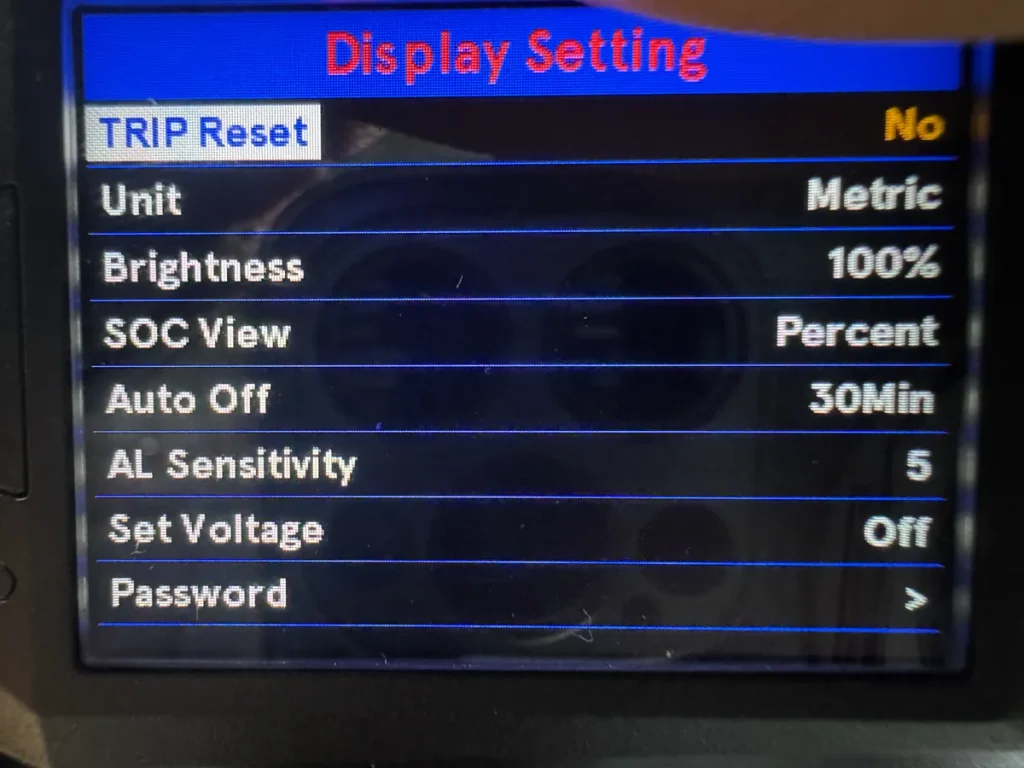
Navigate to the “Unit” section and select it by pressing the middle display button. Select the desired units and choose Exit to leave the display settings menu.
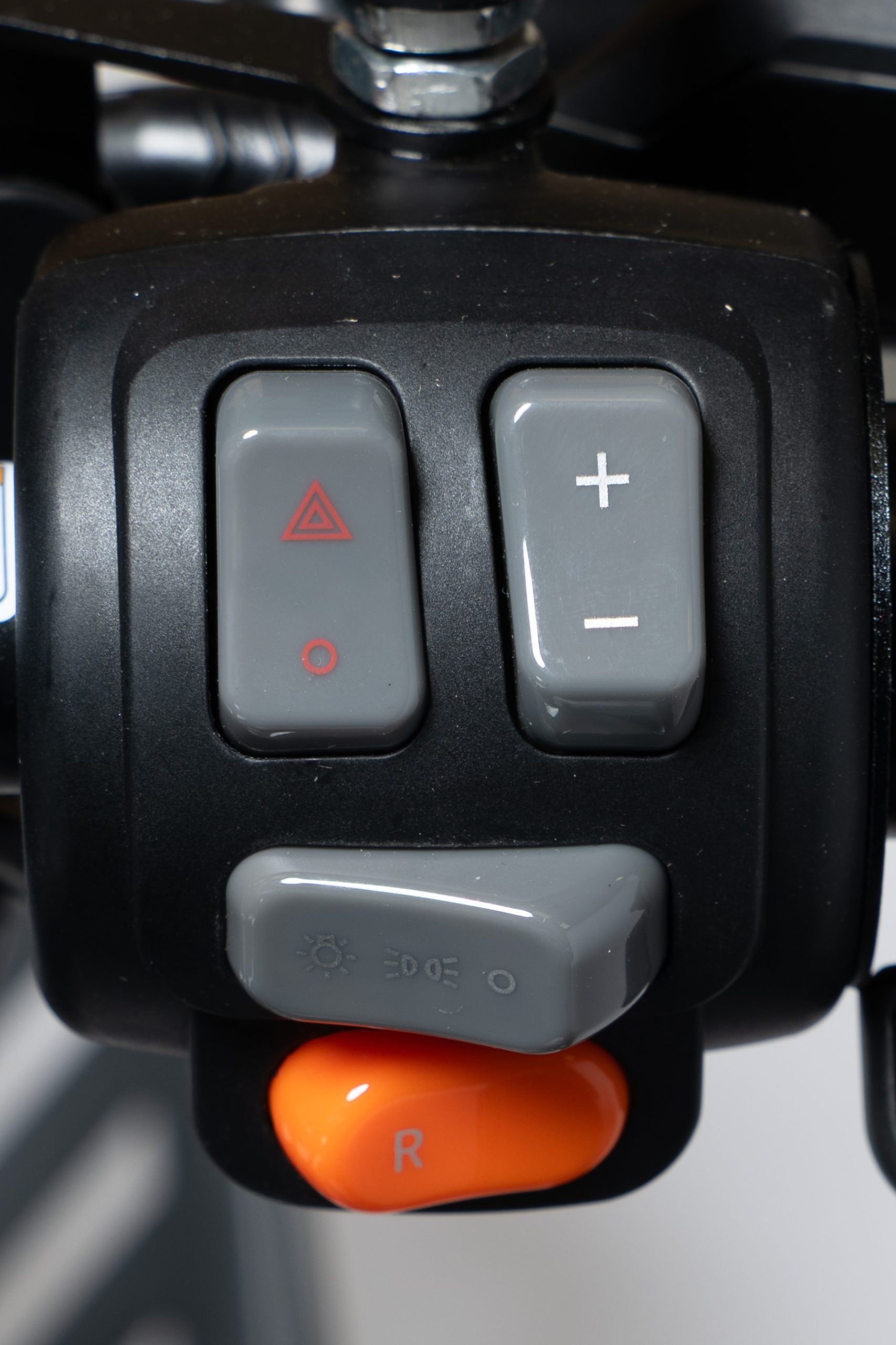
3 Right controls
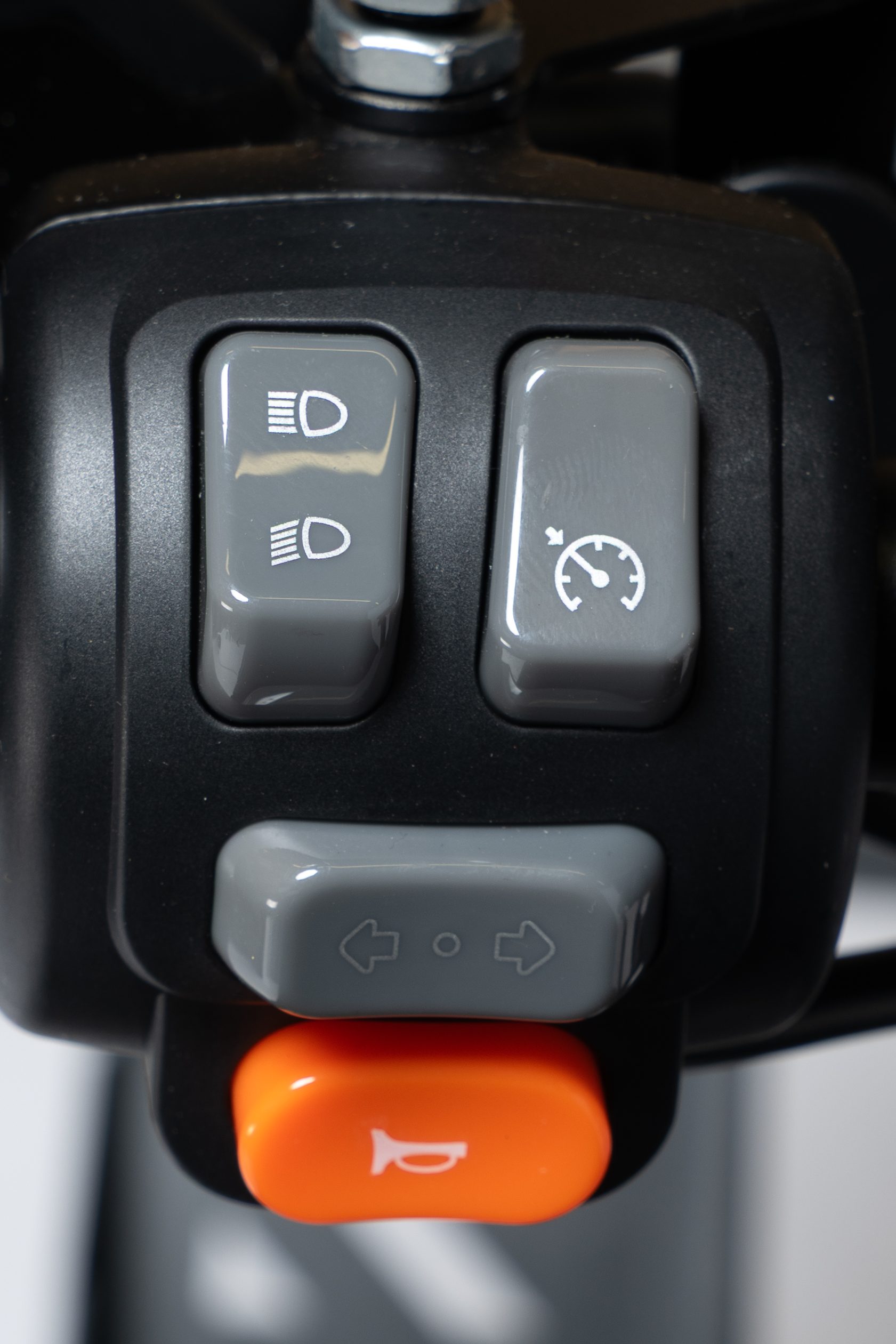
4. Left controls
5. Throttle
The speed is controlled with a twist (or thumb) throttle located on the right handlebar. (Left hand twist- or thumb throttles are options.) Turn the handle or press the thumb lever to increase power to the vehicle. Unlike a gasoline powered vehicle, the electric torque is linear through the entire speed range.
The first step in riding the Zoom is to practice proper power control at low speeds. When seated, turn the throttle slowly and only a fraction. When the Zoom starts to move try to keep a controlled slow speed and practice your ability to creep along slowly. Practice this on flat and uneven surfaces. It is recommended to apply the throttle as evenly as possible. Do not “pump” the throttle. Continuous and abrupt variations will make the ride jerky and will drain the batteries faster.
6. Brakes
The Zoom has an engine brake activated by default. This function can be deactivated or adjusted by an official reseller. When deactivated, the Zoom will roll freely even when the throttle is not applied, and reducing speed or stopping can only be done by applying the brakes.
The Zoom is equipped with hydraulic disc brakes on all four wheels. There are two brake handles on the handlebar (unless your Zoom is equipped with optional single brake lever). The left handle is for the rear wheels and the right handle is for the front wheels.
The brake handles have micro switches that cut the power to the motors when braking. A slight clicking sound will be heard when applying the brake levers.
6.1 Parking brake
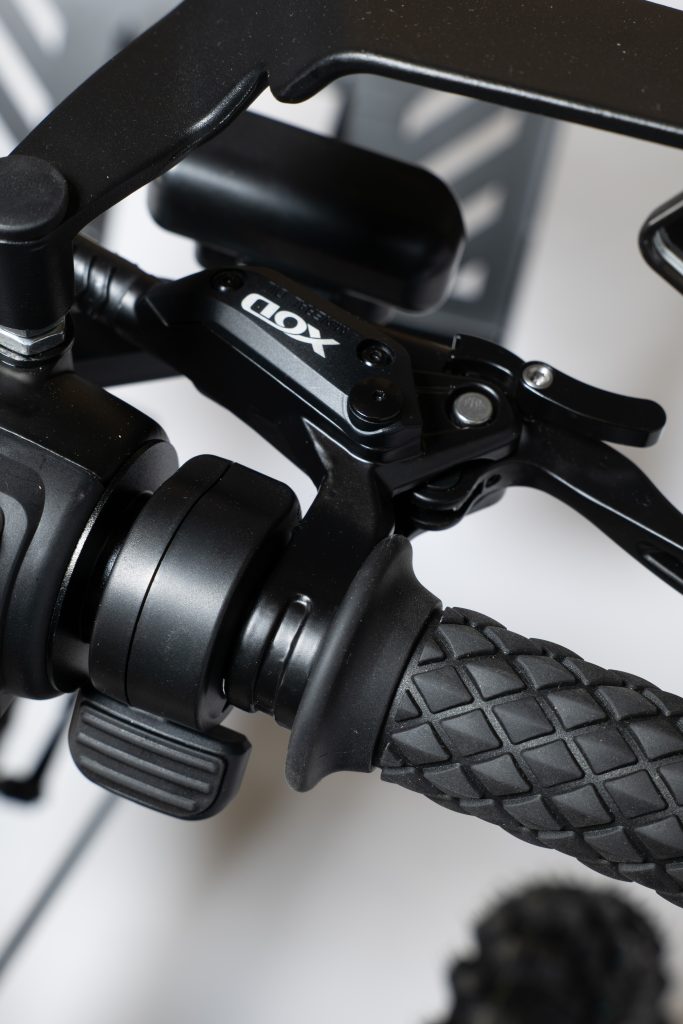
The brake handles are equipped with a parking brake mechanism that should be engaged whenever the Zoom is parked, being transported, or left unattended.
- To engage the parking brake, press in the brake handle and push up the small parking brake lever until it clicks into place, locking the brake handle in the braking position.
- To disengage the parking brake, press in the brake handle; the spring-loaded parking brake lever will return to its original position.
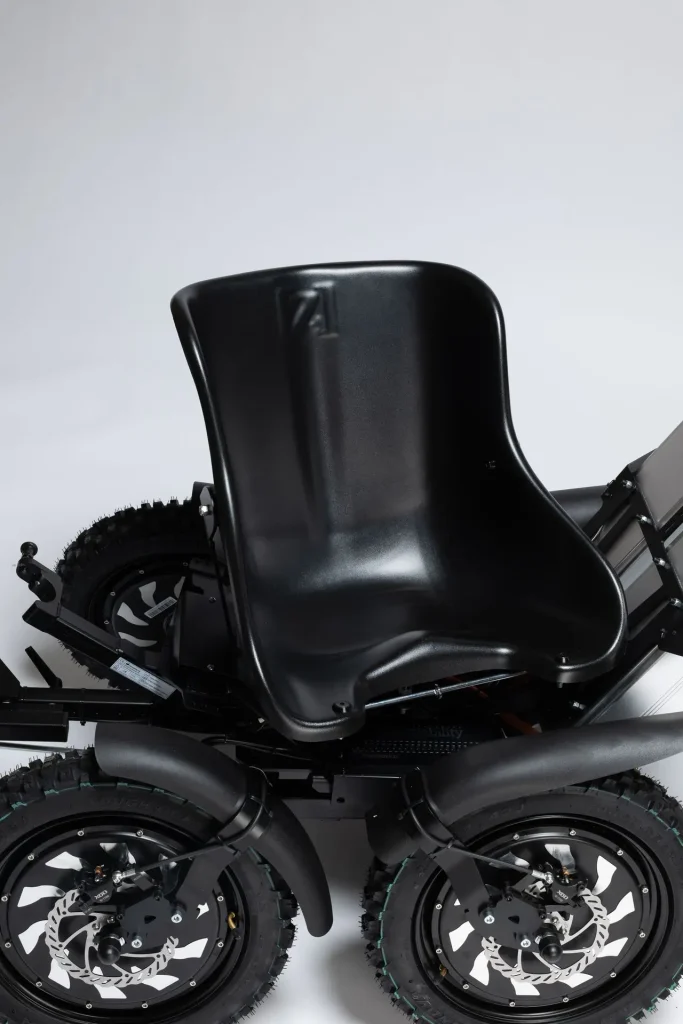
7. Swivel seat
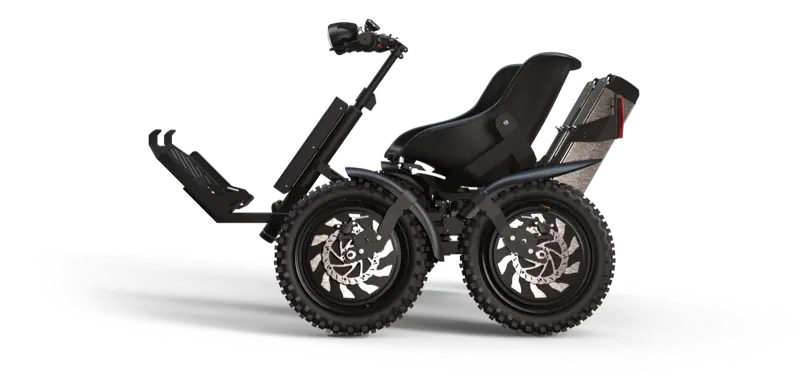
The seat can be turned left and right for easier embarking and disembarking from the Zoom. This is operated by a handle on each side of the seat. When the seat is out of the straight-forward position, the Zoom will not operate and will display an error on the display.